 QuickCue
Add to Chrome
Getting Started with Secrets AI: A Setup Guide to Save Your Credits
Disclosure. The Secrets AI link in this post is an affiliate link. If you sign up through it I may earn a commission, at no extra cost to you. This post covers a companion site with adult content and is for readers 18 and older.
Set up before you spend
Secrets AI is the strongest of the major companion platforms once you know how to use it, but it has a real learning curve. Jump straight into generating without setting a few things up first, and you'll burn credits re-editing images and video that never needed to come out wrong in the first place. This guide covers the setup that would have saved me credits in my first weeks on the platform.
Step one: build your persona first
Before generating anything, set up your own persona. Left on default, Secrets generates a vague, generic-looking stand-in for you in photos and videos — not anyone in particular, just a placeholder. If you skip this step, you'll end up editing that default figure after every single generation to make it look like someone you actually want to see in the scene.
Spend the time upfront making your persona look like you, or like whoever you want to represent you in the scene. That one piece of setup removes an entire category of repeated edits later.
Step two: fully build your character before generating
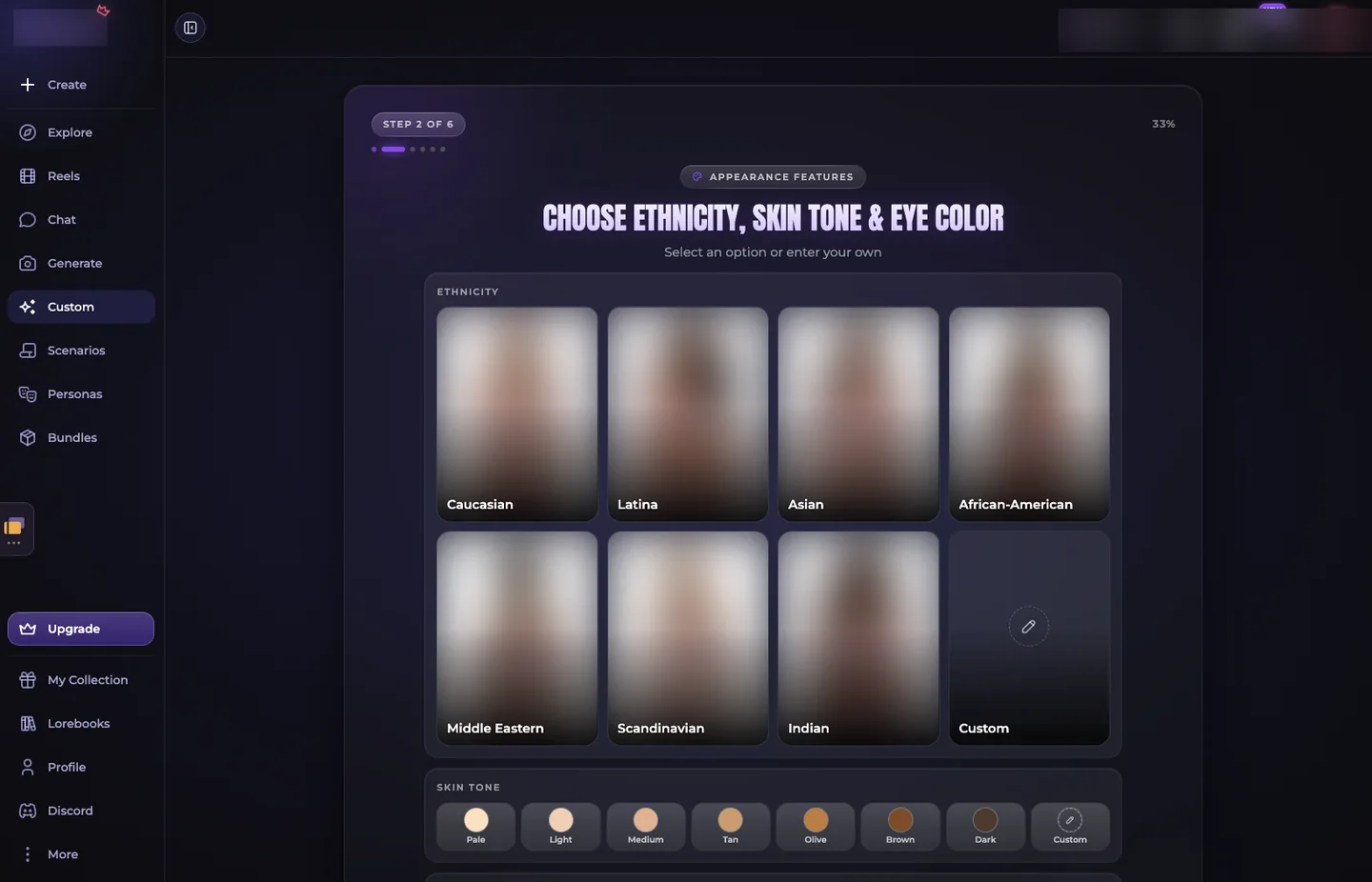
The same logic applies to the other side of the conversation. Secrets' custom character creation is genuinely robust, and it doesn't cost many credits to use — so there's little reason to start generating against a half-built character and fix it later.
Take the time to flesh out appearance, personality, and backstory in the character builder before your first generation. A character you've actually tuned to how you want them to look produces usable results far more often than one you're improvising around on the fly.
Why this order actually saves credits
Generated images and video are never perfect on the first pass — there's always some weirdness to expect, and you'll need the editing tools regardless. The difference persona and character setup makes is in what you're correcting. Skip setup, and every edit is fighting the default look: a generic face, a character who doesn't match the backstory you have in your head. Do the setup first, and edits become small refinements on a foundation that was already close to right.
That's the whole credit-saving logic in one line: fix the inputs once, not the outputs every time.
Use the lore books
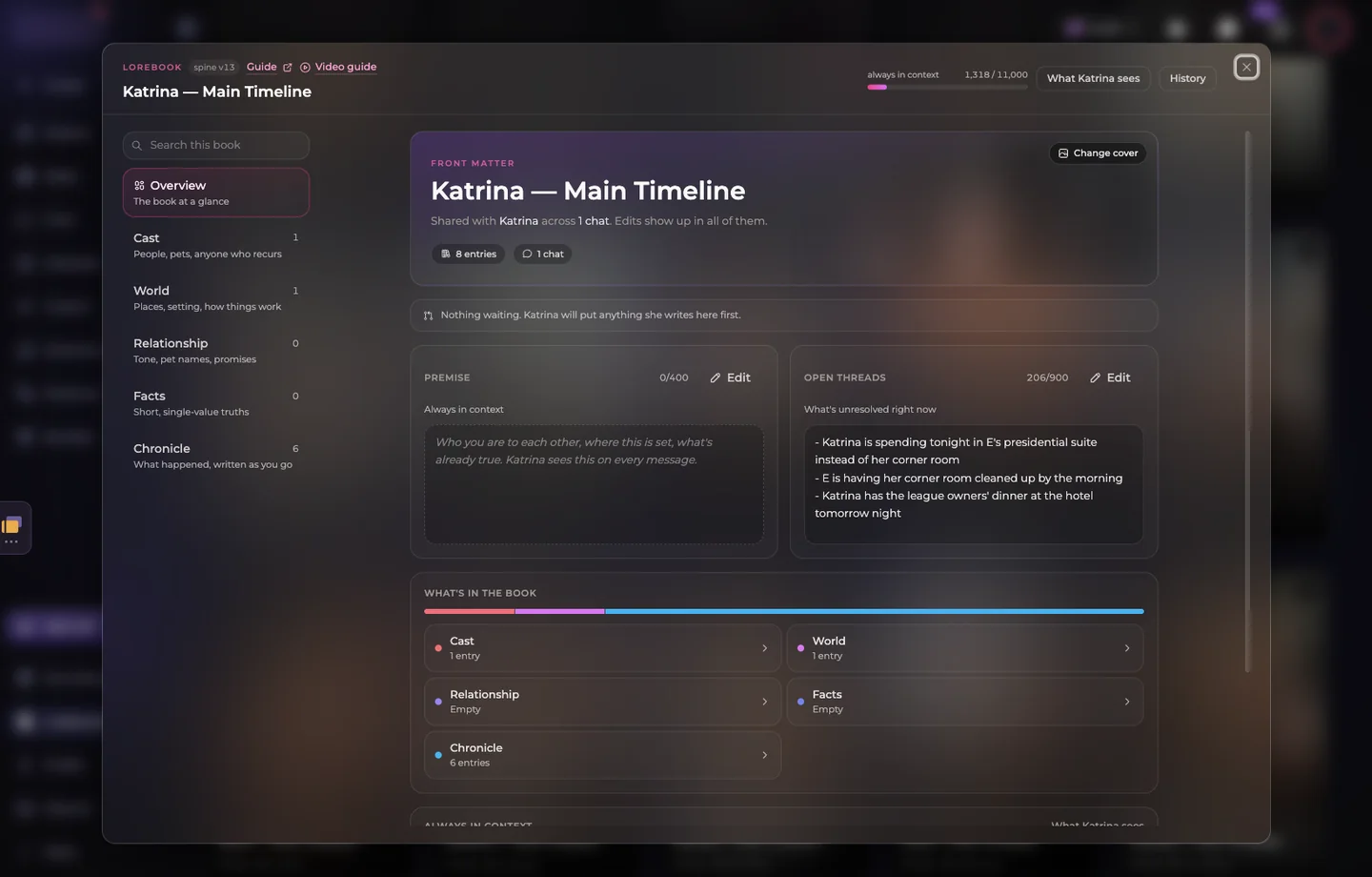
This is where Secrets genuinely separates itself from other platforms, and it's worth treating as a core part of setup rather than an optional extra. Fill in a character's location, age, and backstory through the lore book and world-building settings before you start interacting with them.
This is also what keeps conversations from going stale over time: a character with real backstory and setting doesn't need to keep reminding you who they are the way characters on other platforms do. The depth you put in here is what makes each companion feel distinct rather than a reskin of the last one.
Edit and download what you make
Secrets lets you edit any generated image directly rather than starting over from scratch, and it has a clear, prominent download button that actively encourages you to keep what you create. Use both. Editing in place saves credits you'd otherwise spend on a fresh generation, and downloading means the content you've tuned to look right doesn't just live inside the app — it's actually yours.

Keep the momentum going with QuickCue
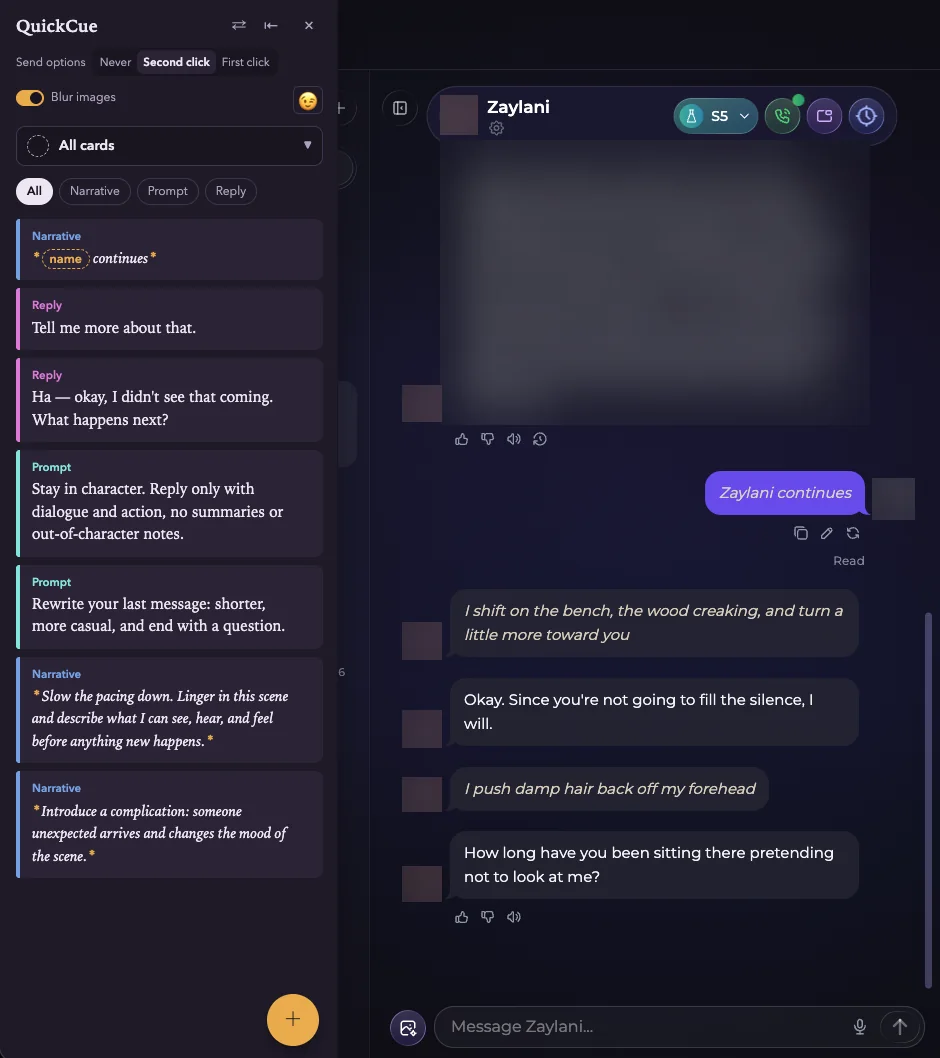
One more tool worth having in your setup: QuickCue, a sidebar of premade reply cards that sits alongside the chat. It's less about speed and more about momentum — typing a response every single turn can get tiring, and sometimes you want the story to keep moving without having to stop and think about what comes next.
I lean on it most for narrative-direction cards: drop in the character's name and a line like "continues," click it, and the scene keeps going in their hands instead of yours. It's also useful for cards that push a scene toward more description when you want the setting or action fleshed out rather than just dialogue. Either way, it keeps you in the scene instead of pulling you out of it to compose the next line.
Quick-start checklist
- Build out your persona before generating anything
- Fully flesh out your custom character's appearance, personality, and backstory
- Fill in the lore book: location, age, backstory
- Edit generated images in place instead of regenerating from scratch
- Download what's worth keeping
- Set up QuickCue for narrative-direction and scene-description cards